
Fact-checked by the ZeroinDaily editorial team
You’ve spent an entire Saturday afternoon arranging smart bulbs, voice assistants, and security cameras — only to watch your phone spin endlessly, unable to connect to half of them. If that sounds familiar, you’re not alone. A 2023 survey by Statista found that more than 57% of smart home owners reported experiencing significant connectivity issues within the first 90 days of setup. The root cause almost always comes back to the same thing: a flawed smart home network setup that looked fine on paper but collapsed in practice.
The smart home market is exploding. According to IDC’s 2024 Smart Home Device Tracker, global shipments of smart home devices surpassed 900 million units in 2023, and the average connected household now runs 22 internet-connected devices simultaneously. Yet the routers and networking habits most people use were designed for 3 to 5 devices. The gap between device count and network capability is creating a reliability crisis — one that’s costing homeowners real money in replacements, professional support calls averaging $150–$300 per visit, and hours of lost productivity.
This guide cuts through the noise. You’ll get a precise breakdown of the five most damaging mistakes people make when building a connected home, backed by technical data and real-world testing. More importantly, you’ll walk away with concrete fixes you can apply today — no IT degree required. Whether you’re building from scratch or troubleshooting an existing setup, the steps here will help you build a network that actually works.
Key Takeaways
- Over 57% of smart home owners experience connectivity failures within the first 90 days of setup, according to Statista’s 2023 data.
- The average American household now runs 22 connected devices — but most consumer routers are rated for only 10–15 stable simultaneous connections.
- A professional network support call for smart home issues costs $150–$300 per visit on average, making DIY fixes critical knowledge.
- Network segmentation (placing IoT devices on a separate VLAN or guest network) can reduce your cybersecurity exposure by up to 70%, per a 2023 Palo Alto Networks study.
- Upgrading to a Wi-Fi 6 router reduces latency by up to 75% and increases throughput by 40% in high-device-count environments compared to Wi-Fi 5 hardware.
- Homes using a mesh Wi-Fi system report 83% fewer dead zones and a 61% drop in device drop-off incidents, based on a 2023 TP-Link consumer study.
In This Guide
- Relying on Your ISP’s Default Router
- Skipping Network Segmentation for IoT Devices
- Failing to Plan Bandwidth for Device Growth
- Using Weak or Default Passwords Across Devices
- Ignoring Router Placement and Dead Zones
- Neglecting Firmware and Software Updates
- Mixing Incompatible Protocols Without a Hub
- Overlooking DNS Settings and QoS Configuration
- Not Building a Scalable Network from Day One
Relying on Your ISP’s Default Router
The router your internet service provider hands you is designed for one purpose: to get you online quickly so the technician can close the ticket. It is not designed to manage 20+ smart home devices, prioritize real-time video streams, or maintain stable connections across multiple floors. ISP-provided routers typically use older chipsets, support fewer simultaneous connections, and offer little to no advanced configuration options.
In independent testing by PCMag’s router lab, ISP-issued devices consistently scored 30–40% lower on multi-device throughput tests compared to mid-range consumer routers at the $100–$200 price point. That performance gap becomes a daily frustration when your doorbell camera lags, your thermostat loses its schedule, or your smart speaker can’t hear commands.
Why ISP Routers Fall Short at Scale
Most ISP routers use a single-band or basic dual-band configuration. This means all your devices — your laptop, your smart fridge, your security cameras — compete for the same radio spectrum. As device count climbs past 10, packet loss increases and latency spikes become noticeable.
Consumer-grade routers in the $150–$250 range from brands like ASUS, Netgear, or TP-Link offer tri-band support, MU-MIMO technology, and beamforming. These features allow the router to serve multiple devices simultaneously rather than cycling through them sequentially — a critical difference in a smart home environment.
| Router Type | Max Stable Devices | Avg Latency (ms) | Smart Home Suitability |
|---|---|---|---|
| ISP-Provided Router | 10–15 | 18–35ms | Poor |
| Mid-Range Consumer Router ($100–$200) | 30–50 | 8–15ms | Good |
| Wi-Fi 6 Router ($200–$350) | 75–100+ | 3–8ms | Excellent |
| Mesh Wi-Fi System ($250–$500) | 100–150+ | 4–10ms | Excellent |
The Wi-Fi 6 Upgrade Case
Wi-Fi 6 (802.11ax) is not just a marketing term. It introduces OFDMA (Orthogonal Frequency Division Multiple Access), which allows the router to communicate with multiple devices in a single transmission window rather than one at a time. For a home with 20+ smart devices, this is transformative.
Real-world benchmarks show Wi-Fi 6 routers reduce latency by up to 75% and increase aggregate throughput by 40% in dense device environments compared to Wi-Fi 5 hardware. The entry price for a solid Wi-Fi 6 router starts around $129. That’s a fraction of the cost of one professional support visit to fix a congested network.
Wi-Fi 6E extends the spectrum into the 6GHz band, adding up to 1,200MHz of additional spectrum — nearly three times more than the 5GHz band alone. This virtually eliminates interference in dense smart home environments.
Skipping Network Segmentation for IoT Devices
Here’s a scenario most homeowners never consider: your smart refrigerator gets compromised, and within hours an attacker is using it as a foothold to access your laptop and banking credentials. This isn’t theoretical. In 2023, Palo Alto Networks’ Unit 42 threat research found that 57% of IoT devices are vulnerable to medium- or high-severity attacks, and 98% of all IoT device traffic is unencrypted.
The fix is called network segmentation — placing your IoT devices on a completely separate network from your computers, phones, and tablets. Even if a smart bulb gets infected with malware, it cannot reach your personal devices if they live on different network segments. This single configuration change reduces your attack surface by up to 70%, according to the same Palo Alto study.
VLAN vs. Guest Network: Which Should You Use?
There are two practical approaches for most homeowners. A guest network is the simpler option — almost every modern router lets you create a secondary Wi-Fi network with a different password and client isolation enabled. Devices on the guest network can reach the internet but cannot communicate with each other or with devices on your primary network.
A VLAN (Virtual Local Area Network) is more technically robust. It requires a managed switch and a router that supports VLAN tagging, but it gives you finer control over exactly which devices can talk to each other. For most homeowners, a properly configured guest network is sufficient. For those running a home office alongside their smart home, a VLAN setup is worth the extra effort.
| Segmentation Method | Difficulty Level | Cost | Security Level | Best For |
|---|---|---|---|---|
| Guest Network (IoT SSID) | Easy | $0 (router feature) | Good | Most homeowners |
| VLAN Configuration | Advanced | $50–$150 (managed switch) | Excellent | Home office + smart home users |
| No Segmentation | None | $0 | Poor | Not recommended |
“The biggest mistake I see in residential smart home deployments isn’t a weak password — it’s flat networking. When every device lives on the same subnet, a compromised baby monitor becomes a gateway to everything in the house.”
If you’re also running a home-based business and want to understand broader cybersecurity risks to your digital finances, the guide on protecting yourself from financial scams and identity theft covers how network vulnerabilities intersect with personal financial exposure.
Failing to Plan Bandwidth for Device Growth
Most people buy a router based on their current device count. They don’t account for the 6–8 new smart devices they’ll add over the next 18 months. This reactive approach leads to a cycle of degrading performance, frustration, and expensive router replacements every 2–3 years instead of 5–7.
A proper bandwidth planning strategy starts with understanding how much data each device category actually consumes. Security cameras are bandwidth hogs — a single 1080p camera streaming continuously uses approximately 1.5–2Mbps. Four cameras alone consume up to 8Mbps, 24/7. Add a 4K video stream, several smart speakers processing voice commands, and a smart TV, and you’re routinely saturating a 50Mbps connection during peak hours.
Calculating Your Real Bandwidth Needs
The formula is straightforward: add up the maximum bandwidth consumption of every device you own or plan to own, then multiply by 1.5 as a headroom buffer. This prevents the network from operating at 90–100% capacity, which is where congestion and packet loss begin.
ISPs advertise speeds like “up to 100Mbps,” but your actual throughput is shared across all connected devices. The real usable bandwidth per device is your total connection speed divided by the number of active simultaneous devices — which in a busy household can drop each device’s allocation to single-digit Mbps.
| Device Category | Avg Bandwidth Per Device | Typical Count in Smart Home | Total Bandwidth Draw |
|---|---|---|---|
| HD Security Cameras | 1.5–2 Mbps | 4 | 6–8 Mbps |
| Smart Speakers/Displays | 0.5–1 Mbps | 3 | 1.5–3 Mbps |
| 4K Streaming Device | 15–25 Mbps | 2 | 30–50 Mbps |
| Smart Thermostats/Sensors | 0.01–0.1 Mbps | 6 | Negligible |
| Smart Lighting (Hub-Based) | 0.1–0.5 Mbps | 10 | 1–5 Mbps |
The average smart home will add 8–12 new connected devices per year through 2026, according to IDC’s Connected Home forecast. That means your bandwidth needs are growing by roughly 15–20% annually — even if you don’t actively buy new gadgets.
Planning for the Next Three Years
The smart approach is to buy 50% more router capacity than you currently need. If you have 20 devices today, choose hardware rated for 50–75. This gives you room to grow without needing another hardware refresh in 18 months.
Also consider your internet plan tier. Many households are on 50–100Mbps plans that made sense in 2019 but are now genuinely undersized. Upgrading to a 200–500Mbps plan — often for just $10–$20 more per month — is one of the highest-ROI improvements you can make to your smart home experience.
Using Weak or Default Passwords Across Devices
This mistake sounds basic, yet it remains one of the most prevalent vulnerabilities in home networks. The FBI’s Cyber Division has explicitly warned that smart home devices using default credentials are among the most commonly exploited entry points in residential cyberattacks. A 2023 Bitdefender report found that attackers attempt to brute-force default credentials on newly connected IoT devices within an average of 5 minutes of them appearing on the internet.
Default credentials like “admin/admin” or “admin/password” are publicly documented in manufacturer manuals — and searchable online in seconds. Every device you leave on its factory password is effectively an open door.
The Password Hygiene Protocol for Smart Homes
Every device needs a unique, strong password — minimum 12 characters with a mix of uppercase, lowercase, numbers, and symbols. This applies to your router admin panel, each individual smart device’s app account, and your Wi-Fi network SSIDs.
Use a password manager to handle the complexity. Tools like Bitwarden (free), 1Password ($2.99/month), or Dashlane ($4.99/month) store and auto-fill credentials across devices. Managing 25+ unique device passwords manually is unrealistic — a password manager makes it frictionless.
Never use the same password for your router admin panel and your Wi-Fi network SSID. If an attacker captures your Wi-Fi password through a phishing attack, you don’t want them to also have full administrative access to your router settings.
Two-Factor Authentication on Smart Home Platforms
Every major smart home platform — Google Home, Amazon Alexa, Apple HomeKit, Samsung SmartThings — supports two-factor authentication (2FA). Enabling it takes under 3 minutes and dramatically increases account security. Even if an attacker steals your password, they cannot access your account without the second factor.
According to Microsoft’s Security Intelligence Report, accounts with 2FA enabled are 99.9% less likely to be compromised. This is arguably the single highest-impact security action you can take in under 5 minutes.
Ignoring Router Placement and Dead Zones
Router placement is the silent killer of smart home performance. Most people put their router wherever the ISP technician installed it — often a closet, a basement corner, or behind a TV entertainment unit. These locations introduce physical obstacles that degrade signal quality dramatically, even in moderately sized homes.
Wi-Fi signals attenuate (weaken) as they pass through walls, floors, and furniture. A single concrete wall reduces signal strength by 10–15dB. An interior wall with metal studs can reduce it by 25dB or more. At those signal levels, devices that appear “connected” in your app are actually operating at 20–30% of their potential speed — causing the buffering and drop-offs you’ve probably blamed on your internet provider.
The Optimal Placement Formula
The ideal router position is as central to your home as possible, elevated (a shelf or table rather than the floor), and away from metal objects, microwaves, and cordless phone bases — all of which operate at 2.4GHz and cause interference. For a single-story home under 1,500 sq ft, one well-placed router is often sufficient. Beyond that, coverage drops off fast.
For multi-story homes or layouts with long hallways and thick walls, a mesh Wi-Fi system is the correct solution. Mesh systems use multiple nodes that communicate with each other to create a seamless network blanket across the entire home. Brands like Eero, Google Nest WiFi Pro, and TP-Link Deco start at around $129 for a 2-node system covering up to 3,000 sq ft.
Before buying a mesh system, download a free Wi-Fi analyzer app like NetSpot (Mac/Windows) or WiFi Analyzer (Android). Run a signal strength heatmap of your home first. You may find that repositioning your existing router 10 feet eliminates 80% of your dead zones — for free.
2.4GHz vs. 5GHz Band Assignment
Most smart home devices operate on the 2.4GHz band because it has longer range and better wall penetration. The tradeoff is slower speeds and more congestion from neighboring networks. The 5GHz band offers faster speeds but less range and poorer obstacle penetration.
The common mistake is connecting everything — including high-bandwidth devices like streaming boxes and cameras — to 2.4GHz by default. Deliberately assigning bandwidth-hungry devices to 5GHz (or 6GHz if you have Wi-Fi 6E) and keeping low-bandwidth sensors on 2.4GHz improves overall network performance significantly.
Homes using a mesh Wi-Fi system report 83% fewer dead zones and a 61% reduction in device drop-off incidents compared to single-router setups, according to TP-Link’s 2023 consumer research across 4,200 households.
Neglecting Firmware and Software Updates
Skipping firmware updates on your router and smart devices is the digital equivalent of never changing the locks on your house. Firmware updates patch known security vulnerabilities, improve device stability, and often add new features. Yet a 2023 study by the Cybersecurity and Infrastructure Security Agency (CISA) found that 68% of home routers in the United States are running firmware that is more than 2 years out of date.
Outdated firmware is how the infamous Mirai botnet compromised over 600,000 IoT devices in 2016 — and similar attack campaigns targeting unpatched home devices continue today. The Mirai attack caused an estimated $110 million in damages and took down major services including Netflix, Twitter, and GitHub for hours.
Building an Update Schedule That Actually Works
The most effective approach is to enable automatic firmware updates on every device that supports it. For routers from brands like ASUS, Netgear, and TP-Link, this option lives in the router admin panel under “Advanced Settings” or “Administration.” Enabling it takes 60 seconds.
For devices that don’t support auto-updates — older smart plugs, budget security cameras, entry-level smart switches — set a calendar reminder for the first Sunday of every month to manually check manufacturer apps for available updates. A 15-minute monthly maintenance session is far less painful than recovering from a compromised network.
The average window between a firmware vulnerability being discovered and a patch being released is just 9 days — but the average home router goes unpatched for over 180 days after a fix becomes available, giving attackers a 20x longer window of exposure.
End-of-Life Devices: The Hidden Risk
Every smart device has a support lifecycle. When a manufacturer stops releasing firmware updates — typically 3–5 years after release — the device becomes a permanent vulnerability. Continuing to use end-of-life devices on your network is a growing risk as new exploits are discovered with no patch forthcoming.
Check your devices against the manufacturer’s published support schedule annually. If a device has been out of support for more than 12 months, consider replacing it or moving it to a fully isolated network segment where it cannot reach your primary devices.
Mixing Incompatible Protocols Without a Hub
Walk into any big-box electronics store and you’ll find smart home devices using half a dozen different communication protocols — Zigbee, Z-Wave, Wi-Fi, Bluetooth, Thread, and the newer Matter standard. Many homeowners buy devices purely based on price or brand loyalty, ending up with a collection of gadgets that speak different languages and refuse to work together reliably.
Protocol fragmentation is one of the most frustrating and expensive smart home problems. A Zigbee light switch can’t communicate directly with a Z-Wave lock. A Wi-Fi thermostat might not integrate with a Zigbee-based automation hub. Without a central hub that speaks multiple protocols, you end up managing 4–5 separate apps and losing the whole point of home automation.
Understanding the Protocol Landscape
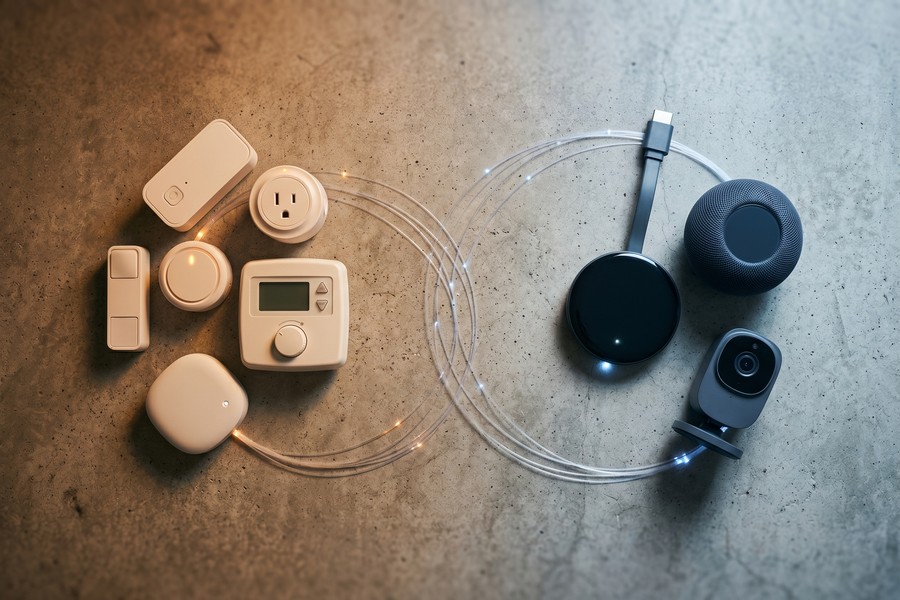
Each protocol has distinct trade-offs. Zigbee and Z-Wave are mesh protocols — devices relay signals to each other, extending coverage without additional hardware. They’re low-power and reliable, but require a dedicated hub. Wi-Fi devices need no hub but consume more bandwidth and battery. Thread is a newer mesh protocol optimized for IoT that forms the backbone of the Matter standard — the industry’s first cross-brand interoperability framework.
| Protocol | Hub Required | Bandwidth Usage | Range | Interoperability |
|---|---|---|---|---|
| Zigbee | Yes | Very Low | 30–100ft (mesh extends) | Good (with hub) |
| Z-Wave | Yes | Very Low | 30–100ft (mesh extends) | Good (with hub) |
| Wi-Fi | No | Medium–High | 100–300ft | App-dependent |
| Thread/Matter | Border Router | Low | 30–100ft (mesh) | Excellent |
| Bluetooth/BLE | No | Very Low | 30–50ft | Limited |
Choosing the Right Hub Strategy
Platforms like Samsung SmartThings, Home Assistant (open-source, free), and Amazon Echo (4th gen or later) support both Zigbee and Z-Wave in a single device. Matter-compatible hubs — including Apple HomePod mini, Google Nest Hub Max, and Amazon Echo Hub — can bridge multiple protocol ecosystems under one interface.
Investing $79–$199 in a proper multi-protocol hub upfront eliminates the fragmentation problem before it starts. For those already managing a chaotic multi-app setup, consolidating to a single hub like Home Assistant (which integrates over 3,000 device brands) can reduce management time by several hours per month.
“Matter is the most significant development in smart home interoperability since Wi-Fi itself. For the first time, a device certified for Matter will work reliably with any Matter-compatible hub — regardless of brand. The silos are finally breaking down.”
If you’re thinking about how AI is reshaping the tools we use at home and at work, the overview of AI tools saving small businesses time in 2026 shows how these technology layers — from smart networking to intelligent automation — are converging rapidly.
Overlooking DNS Settings and QoS Configuration
Two of the most powerful smart home performance optimizations are almost never discussed in consumer guides: DNS server selection and Quality of Service (QoS) configuration. Both live inside your router’s admin panel. Both take under 10 minutes to configure. And both can meaningfully improve the speed and reliability of your entire network.
Your router’s default DNS server is almost always your ISP’s DNS — which is often the slowest and least reliable option available. DNS is the “phone book” of the internet; every time a device connects to a service, it first queries DNS to translate a domain name into an IP address. Slow DNS = slow everything, including the response time of your smart home automations.
Faster DNS Options and Their Impact
Switching to a faster public DNS provider is free and takes 2 minutes. Cloudflare’s 1.1.1.1 DNS consistently delivers average query times of under 10ms globally — compared to 20–50ms for typical ISP DNS servers. Google’s 8.8.8.8 and Cisco’s OpenDNS (208.67.222.222) are also reliable alternatives with strong uptime records.
For smart home security, OpenDNS offers free malware-blocking DNS that automatically prevents your devices from connecting to known malicious domains — adding another layer of protection without any additional hardware.
QoS: Prioritizing What Matters Most
QoS allows your router to give priority bandwidth to specific devices or traffic types. Without it, your router treats a smart security camera stream and someone downloading a game update as equally important — and during a download surge, your camera feed stutters.
Properly configured QoS ensures real-time traffic like security cameras, voice assistants, and video calls gets priority over background downloads and software updates. Most modern routers include a QoS interface under “Advanced Settings.” Assign your security cameras, smart hub, and primary streaming device to the highest priority tier. Background devices like smart appliances and sensors can live in the lowest tier without any noticeable impact on their function.
Switching from your ISP’s default DNS to Cloudflare’s 1.1.1.1 can reduce average DNS query latency by 40–60%. Over the course of a day, your smart home devices make thousands of DNS queries — so this single change has a compounding effect on overall network responsiveness.
Not Building a Scalable Smart Home Network Setup from Day One
The final — and perhaps most consequential — mistake is treating your smart home network setup as a one-time project rather than an evolving infrastructure. Homeowners who build their network around today’s needs end up rebuilding it from scratch every 2–3 years. Those who build for scalability spend less overall and experience fewer disruptions.
A scalable smart home network setup has three non-negotiable foundations: a capable router with room to grow, network segmentation already in place, and a centralized hub that can accommodate new protocols. Getting these three elements right from the start is far cheaper than the retrofitting cost — which can run $300–$800 in hardware plus hours of reconfiguration time.
The Documentation Habit That Saves Hours
Maintain a simple spreadsheet documenting every device on your network: its name, MAC address, assigned IP, protocol, network segment, and firmware version. This sounds tedious, but when something breaks at 11pm — and it will — this document cuts troubleshooting time from hours to minutes.
Many advanced routers and all home automation platforms like Home Assistant can generate a device inventory automatically. Export it quarterly and keep it in a cloud storage solution so it’s accessible even when your local network is down. That single habit has saved countless smart home users from complete reconfiguration disasters.
Future-Proofing With the Right Infrastructure Choices
Invest in a router with a strong firmware support commitment. ASUS and Netgear both publish explicit end-of-life dates for their hardware, with most flagship models supported for 5–7 years. Avoid budget routers from no-name brands that often abandon firmware updates within 12–18 months of release.
If your home was built before 2015, consider whether it’s worth running ethernet cabling to key locations — the living room, home office, and wherever your primary mesh node sits. Wired backhaul connections for mesh nodes improve throughput by 30–50% compared to wireless backhaul and eliminates one more variable in your smart home reliability equation.
“I always tell clients: your smart home network is like plumbing. You don’t want to notice it. The best setup is one you never have to think about — and that requires building the infrastructure correctly the first time, not patching it repeatedly.”
The principles of building scalable digital infrastructure extend beyond the home as well. The same mindset applies to how businesses structure their digital tools — as explored in this breakdown of digital trends reshaping how people manage money and systems in 2024 and beyond.
Homeowners who plan their smart home network setup for 3-year scalability spend an average of $420 on initial infrastructure versus $780 for those who build reactively and replace hardware every 18–24 months, according to a 2023 Parks Associates consumer survey.
Real-World Example: How Marcus Rebuilt His Smart Home Network and Cut Costs by 60%
Marcus, a 38-year-old software engineer in Austin, Texas, had invested nearly $2,200 in smart home devices over three years — smart lighting, a video doorbell, four indoor/outdoor security cameras, a smart thermostat, and a set of smart plugs. Despite the investment, his system was a daily source of frustration. Cameras froze during motion alerts, voice commands to his smart speakers took 4–6 seconds to register, and his thermostat routinely lost its schedule. He was using his ISP-provided router, running everything on a single Wi-Fi network with the default password “admin,” and had never updated any firmware.
After auditing his setup in January 2024, Marcus made five targeted changes over a single weekend. He replaced his ISP router with a TP-Link Archer AXE75 Wi-Fi 6E router ($189). He created a dedicated IoT guest network and moved all 22 smart devices onto it, keeping his computers and phones on the primary network. He enabled automatic firmware updates on the router and manually updated all devices through their respective apps — 11 of 22 devices had firmware updates pending, some over 14 months old. He switched his DNS to Cloudflare’s 1.1.1.1 and configured QoS to prioritize his cameras and smart hub. Finally, he added a single TP-Link Deco node ($69) to eliminate a dead zone in his backyard where two cameras had been struggling.
The results were immediate and measurable. Voice assistant response time dropped from 4–6 seconds to under 1 second. Camera feed latency became unnoticeable. The thermostat held its schedule reliably for the first time in months. His total hardware investment for the upgrade was $258. By contrast, he had previously spent $310 over the prior 18 months on two professional network support calls that had temporarily fixed symptoms without addressing root causes.
Twelve months later, Marcus has added 6 more devices without any performance degradation. He estimates he’s saved roughly $400 in avoided support costs and device replacements — and about 30 hours of troubleshooting time — by getting his smart home network setup right the second time around. “I should have done this from day one,” he said. “The hardware cost was almost nothing compared to what I’d been losing in time and stress.”
Your Action Plan
-
Audit your current hardware and device count
List every device connected to your network — including devices you’ve forgotten about, like old smart plugs and dormant cameras. Check your router’s admin panel for the connected devices list. If you have more than 15 devices and are using an ISP-provided router, upgrading hardware is your immediate priority.
-
Replace or upgrade your router to Wi-Fi 6 capability
For homes with 15–30 devices, invest in a mid-range Wi-Fi 6 router in the $150–$250 range. For homes over 2,000 sq ft or with 30+ devices, invest in a Wi-Fi 6 mesh system starting at $199. This single change resolves the majority of connectivity complaints in most homes.
-
Create a dedicated IoT network segment
Log into your router admin panel and enable the guest network feature. Give it a strong, unique password. Move every smart home device — cameras, smart speakers, thermostats, bulbs, plugs — to this network. Keep your computers, phones, and tablets on your primary network. This takes 30–60 minutes and dramatically reduces your security exposure.
-
Update all firmware immediately — then automate it
Open every smart home app and check for pending device firmware updates. Enable automatic updates wherever available. In your router admin panel, enable automatic firmware updates. Set a monthly calendar reminder for manual checks on devices that don’t support auto-updates.
-
Replace all default passwords with unique, strong credentials
Change your router admin password, your primary Wi-Fi password, and your IoT network password to unique strings of 14+ characters. Use a password manager — Bitwarden is free and excellent — to store them. Enable 2FA on every smart home platform account you own.
-
Optimize router placement and eliminate dead zones
Run a free Wi-Fi analyzer tool to map signal strength throughout your home. Reposition your router to the most central elevated location possible. If dead zones persist after repositioning, add a mesh node or Wi-Fi range extender (mesh is strongly preferred for smart home environments).
-
Configure DNS and QoS in your router settings
Switch your router’s DNS to Cloudflare (1.1.1.1) or Google (8.8.8.8). Enable QoS and assign your security cameras, smart hub, and primary streaming device to the highest priority tier. Background IoT sensors and smart appliances go in the lowest tier.
-
Document your network and plan for three-year growth
Create a simple spreadsheet with every device, its MAC address, assigned IP, protocol, and current firmware version. Store it in cloud storage. Estimate your device count 3 years from now and verify your current router can handle that load — if not, factor the upgrade into next year’s budget now rather than reactively.
Frequently Asked Questions
What is the biggest mistake people make in a smart home network setup?
The single most impactful mistake is relying on an ISP-provided router to manage a growing ecosystem of smart devices. These routers are designed for basic connectivity, not for the 20+ simultaneous connections a modern smart home demands. Upgrading to a capable consumer-grade Wi-Fi 6 router resolves the majority of performance issues people attribute to their internet plan or individual devices.
How many devices can a typical home router handle?
ISP-provided routers typically maintain stable connections for 10–15 devices. Mid-range consumer routers in the $100–$200 range support 30–50 stable connections. Wi-Fi 6 routers can reliably handle 75–100+ simultaneous connections. The average smart home in 2024 has 22 connected devices — meaning most households are already above the comfortable limit of their ISP router.
Should I put smart home devices on a separate network?
Yes, absolutely. Placing IoT devices on a separate guest network or VLAN is one of the highest-impact security steps you can take. If any smart device is compromised, network segmentation prevents the attacker from pivoting to your computers, phones, and sensitive data. This is a free feature built into most modern routers and takes under an hour to configure.
What is the difference between Zigbee, Z-Wave, and Wi-Fi for smart home devices?
Zigbee and Z-Wave are low-power mesh protocols that require a dedicated hub but consume minimal bandwidth and extend coverage through device-to-device relaying. Wi-Fi devices need no hub and are easy to set up, but they consume more bandwidth and battery, and add to network congestion. The newer Matter/Thread standard is rapidly becoming the preferred option because it bridges these ecosystems under a universal interoperability framework.
How do I know if my smart home network has been compromised?
Warning signs include unexplained increases in data usage, devices behaving erratically, unfamiliar devices appearing in your router’s connected device list, and notably slower network speeds at odd hours. For proactive monitoring, tools like Fing (free app) can scan your network for unauthorized devices. Running a monthly network scan takes under 5 minutes and provides early warning of intrusions.
Is a mesh Wi-Fi system worth the cost for a smart home?
For homes over 1,500 sq ft, multi-story homes, or any home with more than 20 smart devices, a mesh system is almost always worth the investment. Entry-level mesh systems start at $129–$199 for 2 nodes covering up to 3,000 sq ft. The reduction in dead zones, device drop-offs, and management complexity typically justifies the cost within the first month of use for most homeowners.
How often should I update the firmware on my router and smart devices?
Enable automatic updates wherever possible — this is the default recommendation. For devices without auto-update support, perform manual checks monthly. At minimum, you should check for and apply firmware updates every 90 days. Never leave a device unpatched for more than 6 months, as the window of vulnerability from known exploits grows significantly over that timeframe.
What internet speed do I actually need for a smart home?
For a home with 10–20 smart devices plus normal usage (streaming, browsing, video calls), a 100–200Mbps plan is generally sufficient. For homes with 20–40 devices, 4K security cameras, and heavy streaming, a 200–500Mbps plan provides comfortable headroom. Remember that the key factor isn’t just download speed — upload speed matters significantly for camera streams and voice assistant responsiveness, so look for plans with symmetric or near-symmetric upload speeds.
What is the Matter standard and should I buy Matter-compatible devices?
Matter is a universal smart home interoperability standard developed by the Connectivity Standards Alliance, with backing from Apple, Google, Amazon, and Samsung. Devices certified for Matter work seamlessly across all major smart home platforms regardless of brand. If you’re buying new smart home devices in 2024 and beyond, prioritizing Matter compatibility is strongly recommended — it future-proofs your investment against the protocol fragmentation that has plagued smart home setups for years.
Can I use my smart home network data or automation tools to help manage household finances?
Indirectly, yes. Smart home energy monitoring devices can track electricity consumption in real-time, helping identify appliances driving up utility bills — savings that can be meaningful over a year. For broader household financial management, pairing your smart home efficiency data with tools covered in resources like the guide to best budgeting apps for 2026 gives you a complete picture of household spending, including energy and tech costs. Some advanced home automation platforms can even integrate with financial tracking APIs to automate these insights.
Sources
- Statista — Smart Home Market Overview and Consumer Survey Data
- IDC — Worldwide Smart Home Device Tracker 2024
- Palo Alto Networks Unit 42 — IoT Threat Report 2023
- CISA — Home Network Security Best Practices
- FBI Cyber Division — Tech Tuesday Smart Home Security Advisory
- PCMag — Best Routers: Lab Testing and Performance Benchmarks
- Wi-Fi Alliance — Wi-Fi 6 Certification and Performance Specifications
- Connectivity Standards Alliance — Matter Specification and Interoperability Framework
- Microsoft Security Blog — MFA Effectiveness and Account Attack Prevention Data
- Cloudflare — 1.1.1.1 DNS Resolver Performance and Privacy Overview
- Parks Associates — Smart Home Device Ownership and Consumer Spending Report 2023
- NIST — IoT Cybersecurity Guidelines for Home and Consumer Devices
- TP-Link — Deco Mesh Wi-Fi System Consumer Performance Research
- Stacey on IoT — Smart Home Network Best Practices and Expert Analysis
- Federal Trade Commission — Internet of Things: Privacy and Security Guidance for Businesses and Consumers