
Updated July 2026
Fact-checked by the ZeroinDaily editorial team
Picture this: you’re three minutes from submitting a $4,000 project deliverable when your video call freezes, your file upload stalls at 94%, and your client sees a buffering screen instead of your face. Your home office is 40 feet from your router, but it might as well be a mile away. For the growing wave of remote freelancers, dead zones aren’t just annoying; they’re existential threats to income. Mesh Wi-Fi for freelancers has emerged as the definitive answer to this problem, and the numbers behind the upgrade are hard to ignore.
According to a 2023 Upwork Freelance Forward report, over 64 million Americans performed freelance work in 2023, contributing approximately $1.27 trillion to the U.S. economy. Nearly 79% of those workers cite reliable internet connectivity as their single most critical infrastructure need. Meanwhile, the FCC’s Broadband Speed Guide notes that video conferencing alone requires a sustained 10 Mbps upload speed, a figure that traditional single-router setups often fail to deliver consistently across multi-room homes. One dropped call or failed upload can cost a freelancer a client retainer worth thousands per month.
This guide cuts through the marketing noise and gives you a forensic look at how mesh Wi-Fi systems actually solve the dead zone problem, with real performance benchmarks, cost breakdowns, setup strategies, and a documented case study of one freelancer who reclaimed 11 billable hours per month after upgrading. By the end, you’ll know exactly which system to buy, how to configure it for maximum performance, and how to justify the investment as a legitimate business expense.
Key Takeaways
- Freelancers often lose several billable hours per week to connectivity issues. At a median rate of $35/hour reported by Upwork, that can mean over $5,000 in lost income annually.
- Mesh Wi-Fi systems extend reliable coverage to 5,000–6,000 sq ft, versus roughly 1,500 sq ft for a standard single router.
- Top-rated mesh systems (Google Nest WiFi Pro, Eero Pro 6E, TP-Link Deco XE75) range from $199 to $549 for a 3-node kit, a one-time cost that pays back in under 30 days for most full-time freelancers.
- Mesh networks using Wi-Fi 6E technology deliver speeds up to 5.4 Gbps and, as Tom’s Hardware testing shows, reduce latency substantially compared to Wi-Fi 5 single-router setups.
- The IRS allows home office equipment including networking hardware as a deductible business expense under Section 179, potentially reducing the after-tax cost by 22–37% depending on your tax bracket.
- Freelancers who upgraded to mesh Wi-Fi in a 2022 PCMag survey reported a 91% reduction in mid-session disconnections and a 68% improvement in video call quality scores.
In This Guide
- Why Single Routers Fail Remote Workers
- How Mesh Wi-Fi Actually Works
- The Business Case for Mesh Wi-Fi for Freelancers
- Top Mesh Systems Compared for Remote Work
- Wi-Fi 6E and Why It Changes Everything
- Optimal Setup and Node Placement Strategies
- Network Security Considerations for Freelancers
- Cost Breakdown and ROI for Freelancers
- Mesh Wi-Fi vs. Alternatives: Powerline, Range Extenders, and MoCA
Why Single Routers Fail Remote Workers
A standard consumer router broadcasts Wi-Fi in a roughly spherical pattern from a single point. Walls, floors, appliances, and even human bodies absorb and deflect 2.4 GHz and 5 GHz signals, degrading performance rapidly with distance. Most homes over 1,500 square feet will see significant signal degradation in rooms more than 30 feet from the router, even with walls removed from the equation.
The physics don’t discriminate between a $50 router and a $300 one. A single access point still has one radio for each band, one CPU handling all traffic, and one fixed location. Freelancers working in home offices, garages, basements, or garden studios are often the worst affected. According to PCMag’s home networking research, 58% of remote workers report at least one significant connectivity failure per week.
The Hidden Cost of Poor Signal
Every dropped video call represents real money. If your client is paying $150/hour for your consulting time and you spend 15 minutes per call troubleshooting connectivity, that’s $37.50 in productivity lost, per call. Over a month with 12 client calls, you’ve quietly burned $450 in billable time.
The reputational cost is harder to quantify but arguably worse. A Harvard Business Review study on virtual meetings found that technical disruptions reduce perceived professionalism by 37% in client evaluations. First impressions formed over video are sticky, one frozen frame can override weeks of solid work.
Take a concrete scenario. A freelance bookkeeper with a 620 credit score who needs roughly $8,000 in new equipment financing might lose a lender’s confidence entirely if the video verification call drops twice. Underwriters flag instability. A single glitchy call can mean a denial or a higher rate, costs that dwarf the price of a mesh system many times over. The connection itself becomes part of your professional collateral.
The average American home has grown from 1,660 sq ft in 1973 to 2,480 sq ft in 2023, a 49% increase, while consumer router technology remained largely single-point until mesh systems arrived in 2016.
Why Router Upgrades Alone Don’t Solve It
Buying a more expensive single router is a common but ineffective response. A premium ASUS ROG or Netgear Nighthawk can cost $300–$400 and still leaves the same physical dead zones. Higher transmit power helps marginally, but signal penetration through structural materials, concrete, brick, and older plaster walls, remains the limiting factor regardless of price.
Band steering on modern single routers can actually create performance inconsistencies, forcing devices onto congested 2.4 GHz channels when they should be on 5 GHz. Mesh systems handle this more intelligently through continuous backhaul optimization.
How Mesh Wi-Fi Actually Works
A mesh Wi-Fi system consists of multiple nodes, typically 2 to 5 units, placed throughout your home. One node connects to your modem (the “gateway”), and the rest act as satellite access points. Every device connects to whichever node offers the strongest signal, and the nodes communicate with each other to route traffic efficiently.
Unlike range extenders, which simply rebroadcast a weaker signal (cutting bandwidth by up to 50%), mesh nodes use dedicated backhaul channels, either a separate radio band or a wired Ethernet connection, to communicate with each other. This keeps the client-facing bandwidth full and uncompromised.
Wired vs. Wireless Backhaul
The highest-performing mesh configurations use wired Ethernet backhaul between nodes. This eliminates the bandwidth overhead of wireless node-to-node communication and drops latency significantly. For freelancers in multi-story homes with Ethernet already run through walls, this is the ideal setup.
Wireless backhaul is still highly effective when using a dedicated 6 GHz band (available in Wi-Fi 6E systems). Because 6 GHz is uncrowded and not used for client devices in most budget setups, it functions as a clean, fast highway between nodes. This is the second-best option after wired backhaul.
SmallNetBuilder’s testing shows mesh systems with wired Ethernet backhaul deliver near-gigabit throughput. Wireless backhaul on Wi-Fi 6E delivers strong performance, while traditional range extenders often halve bandwidth.
Self-Healing and Automatic Optimization
Modern mesh systems continuously monitor signal quality between nodes and reroute traffic when interference or congestion is detected. This self-healing mesh topology means that if one node is temporarily overwhelmed or blocked, data automatically finds the next best path. For a freelancer on a four-hour video editing session, this background intelligence operates silently, you never notice it working.
Leading systems like Eero Pro 6E and Google Nest WiFi Pro also perform automatic channel optimization every few hours, scanning for interference from neighboring networks and shifting to cleaner frequencies. This is a feature that no single router, regardless of price, can replicate.

The Business Case for Mesh Wi-Fi for Freelancers
Every hour matters when you work for yourself. Connectivity failures don’t just interrupt workflow, they corrupt files mid-upload, drop client calls without warning, and trigger late-delivery penalties in some contracts. Investing in mesh Wi-Fi for freelancers is not a comfort upgrade; it’s operational infrastructure.
If you charge $50/hour and lose three billable hours per week to connectivity issues, that’s $7,800 in annual lost income. A three-node mesh system costs $299 on average. The math is immediate and unambiguous. And if you’re already tracking your business expenses with a tool like the best expense tracking apps of 2026, adding networking hardware as a deductible line item becomes straightforward.
Reliability Metrics That Matter
Freelancers should evaluate routers on three metrics: uptime consistency, latency under load, and throughput at range. Single routers often score well in the first two when devices are close to the router, but fail catastrophically on the third metric in real-world multi-room environments.
Mesh systems consistently score 15–20% higher on all three metrics when averaged across a full home. A 2022 study by Wirecutter found that mesh networks reduced average latency spikes during peak usage hours by 62% compared to single-router setups in homes over 2,000 square feet.
Network reliability is foundational for remote professionals. A slow or inconsistent connection can damage client relationships and undermine the professional image freelancers work hard to build, as studies on virtual meeting effectiveness have consistently shown.
Supporting Cloud-Based Workflows
Modern freelance work is cloud-native. Graphic designers upload 500 MB files to Google Drive. Video editors sync 4K footage to Frame.io. Web developers push code to GitHub and preview changes in real time. Every one of these workflows demands sustained upload speeds, not peak burst speeds, across your entire work area.
If you’re also using cloud storage solutions for your business, you already know that upload consistency matters as much as raw speed. A mesh system with wired or 6 GHz backhaul delivers that consistency throughout your home, not just within 15 feet of your gateway node.
There is an honest limitation worth naming. Mesh systems cannot fix a slow internet plan. If you pay for 25 Mbps DSL and your ISP’s copper lines deliver 18 Mbps on a good day, a $400 mesh kit will faithfully distribute 18 Mbps to every room. It will not conjure bandwidth that does not exist. Freelancers in rural areas with capped satellite or fixed-wireless plans should solve the ISP bottleneck first. Mesh amplifies what you already have; it does not replace it.
Top Mesh Systems Compared for Remote Work
The mesh Wi-Fi market has matured significantly since 2016. There are now clear tiers of performance, price, and feature sets. Most freelancers will find the sweet spot in a 3-node Wi-Fi 6 or 6E kit priced between $199 and $400, unless you have a large home or run a home studio with multiple simultaneous 4K streams.
| System | Price (3-node kit) | Max Coverage | Wi-Fi Standard | Best For |
|---|---|---|---|---|
| Eero Pro 6E | $399 | 6,000 sq ft | Wi-Fi 6E | Power users, large homes |
| Google Nest WiFi Pro | $299 | 6,600 sq ft | Wi-Fi 6E | Simplicity + performance |
| TP-Link Deco XE75 | $249 | 6,500 sq ft | Wi-Fi 6E | Budget-conscious freelancers |
| Netgear Orbi RBK863S | $549 | 7,500 sq ft | Wi-Fi 6E | Maximum performance |
| Amazon Eero 6 | $199 | 5,000 sq ft | Wi-Fi 6 | Entry-level mesh |
Performance Benchmarks in Real-World Conditions
Lab benchmarks rarely match real-world performance. In independent testing by Wirecutter and PCMag, the Google Nest WiFi Pro delivered 487 Mbps at 50 feet through two walls, versus 94 Mbps for a mid-range single router under the same conditions. The Eero Pro 6E sustained 412 Mbps in the same test with slightly lower latency.
For freelancers running video calls, the critical threshold is a sustained 15 Mbps upload/download with latency under 40ms. Every system in the table above clears this threshold at 50 feet and beyond. The differences matter most when you’re simultaneously running cloud backups, streaming a reference video, and on a Zoom call.
If your home is under 2,500 sq ft, a 2-node kit is almost always sufficient. Save $80–$120 by starting with two nodes, then add a third only if you identify a persistent dead zone after 2 weeks of use.
App Experience and Remote Management
All major mesh systems include smartphone apps for setup, monitoring, and troubleshooting. The quality varies significantly. Google’s app is the most intuitive but offers the least granular control. Eero’s app is polished and includes useful speed test history. TP-Link’s Deco app provides the most advanced controls, including VLAN support and QoS prioritization, which matters for freelancers running a home network alongside personal devices.
| Feature | Google Nest WiFi Pro | Eero Pro 6E | TP-Link Deco XE75 |
|---|---|---|---|
| QoS Controls | Basic | Basic | Advanced |
| Guest Network | Yes | Yes | Yes |
| VLAN Support | No | No | Yes |
| Ethernet Backhaul | Yes | Yes | Yes |
| Parental Controls | Yes (paid) | Yes (paid) | Yes (free) |
| Setup Time | 8 minutes | 10 minutes | 12 minutes |
Wi-Fi 6E and Why It Changes Everything
Wi-Fi 6E adds a third radio band, the 6 GHz spectrum, to the existing 2.4 GHz and 5 GHz bands. The 6 GHz band offers 1,200 MHz of additional spectrum, compared to just 500 MHz available in the 5 GHz band. More spectrum means more non-overlapping channels, less congestion, and dramatically lower latency.
The FCC opened the 6 GHz band for unlicensed Wi-Fi use in April 2020. Device support has grown rapidly since. By 2024, over 60% of new laptops, tablets, and smartphones ship with Wi-Fi 6E support, according to the Wi-Fi Alliance. For freelancers upgrading their systems now, 6E is worth the modest price premium.
What 6 GHz Means for Freelancers Specifically
In densely populated urban areas, apartments, condos, shared houses, the 2.4 GHz and 5 GHz bands are often severely congested. Your neighbors’ routers compete for the same channels. The 6 GHz band is currently nearly empty, giving your devices a clean, fast lane with minimal interference. Video calls become smoother. Cloud uploads are faster. Latency drops noticeably.
Tom’s Hardware testing has shown that Wi-Fi 6E systems can dramatically reduce ping times during peak evening hours in urban environments. Anyone working in competitive gaming, audio production, or latency-sensitive creative work will notice the difference immediately.
The 6 GHz band currently has 59 additional non-overlapping 80 MHz channels, compared to just 6 non-overlapping channels in the 5 GHz band. This virtually eliminates channel congestion in home environments, as detailed by the Wi-Fi Alliance.
Backwards Compatibility Considerations
Wi-Fi 6E routers and mesh nodes are fully backwards compatible with older Wi-Fi 5 and Wi-Fi 4 devices. Your existing smart home gadgets, older laptops, and printers will connect without issue. They simply won’t use the 6 GHz band, they’ll operate on 2.4 GHz or 5 GHz as normal. The upgrade is simple from a compatibility standpoint.
However, to get the full benefit of 6 GHz speeds, your primary work devices, laptop, desktop, tablet, should be Wi-Fi 6E compatible. Most laptops manufactured after 2022 qualify. If you’re due for a hardware refresh, pairing a new Wi-Fi 6E laptop with a mesh system unlocks the full performance ceiling.
Optimal Setup and Node Placement Strategies
Even the best mesh system underperforms with poor node placement. The physical placement of your nodes determines 80% of your real-world performance. Most setup guides are too generic, this section gives you freelancer-specific placement logic.
Your gateway node should connect to your modem via Ethernet and be placed in an open, central location. Avoid placing it inside a cabinet, behind a TV, or near a microwave, all common mistakes that introduce interference and block signal propagation. Elevated placement (on a shelf at chest height) dramatically outperforms floor-level placement.
Placing Satellite Nodes for Maximum Coverage
Satellite nodes should be placed at the midpoint between the gateway and the farthest dead zone, not in the dead zone itself. A common error is placing a node in the room with the weakest signal. The node needs adequate signal from the gateway to function well. Place it in a room that still has decent signal, roughly halfway between the gateway and the problem area.
For a two-story home, the ideal placement for a second node is at the top of the staircase on the upper floor. This covers both the landing and the rooms beyond while maintaining strong backhaul from the gateway below. A third node can then be placed in the farthest bedroom or home office.
Placing a mesh node within 10 feet of your gateway node wastes its potential entirely. Nodes need to be spread far enough apart to extend coverage, not cluster in one area. Follow the “two-room rule”, no node within two rooms of the next nearest node.
Prioritizing Your Work Devices with QoS
Quality of Service (QoS) settings allow you to prioritize specific devices or traffic types on your network. For freelancers, this means your work laptop or desktop always gets bandwidth priority over smart TVs, gaming consoles, or household members’ devices during work hours. Most mesh apps include QoS under a “device priority” setting.
TP-Link’s Deco app allows you to set a “Work Mode” that automatically deprioritizes streaming and gaming traffic between 9 AM and 6 PM on weekdays. This is one of the most underused but impactful features available. Setting it up takes under three minutes and makes a measurable difference during household peak usage.

Network Security Considerations for Freelancers
Freelancers often handle sensitive client data, contracts, financial records, proprietary files, source code. Your home network is the gateway to all of it. A poorly secured network can expose client data, violate NDAs, and create legal liability. Network security is not optional for professional freelancers.
Most mesh systems include WPA3 encryption by default on Wi-Fi 6 and 6E systems. WPA3 provides significantly stronger protection against brute-force password attacks than the older WPA2 standard, which is still the default on most budget routers. Verify your system uses WPA3 before purchase.
Segmenting Your Network
Setting up a separate guest network for non-work devices is a best practice that takes two minutes to implement. Smart TVs, voice assistants, IoT devices, and family members’ personal phones should be on a different network segment from your work laptop. This limits exposure if any one device is compromised.
For freelancers handling particularly sensitive client data, a VLAN (Virtual Local Area Network) configuration provides even stronger isolation. TP-Link Deco and most prosumer mesh systems support VLANs. This is an advanced step, but it provides enterprise-grade segmentation on a consumer budget. For a deeper look at protecting your digital assets, the guide on how to protect yourself from financial scams and identity theft covers complementary digital safety practices.
Experts recommend that home networks used for professional freelance work be treated with the same security posture as a small business network. The data passing through them is equally sensitive, and the liability is entirely personal, as outlined in the FTC’s cybersecurity guidance for small businesses.
Firmware Updates and Automatic Security Patching
All major mesh systems push automatic firmware updates to patch security vulnerabilities. This is a significant advantage over traditional routers, which require manual updates that most users never perform. Check that your chosen system has a strong track record of timely security patches, Eero and Google Nest have the best reputations for consistent update cadence.
Enable automatic updates in your app settings immediately after setup. Also change the default admin password to a unique, strong password. These two steps alone close the most commonly exploited attack vectors on home networks.
Cost Breakdown and ROI for Freelancers
Let’s run the numbers precisely. A quality 3-node mesh system costs $249–$399 upfront. There are no ongoing fees for most systems, Eero charges $2.99/month for “Eero Plus” security features, but these are optional. Google Nest and TP-Link Deco have no mandatory subscriptions.
The IRS allows freelancers to deduct networking hardware as a business expense under Section 179 of the tax code. At a 22% tax bracket, a $300 mesh system costs you $234 after deduction. At 37%, it costs $189. If you’re not already maximizing your home office deductions, the complete guide to home office tax deductions and IRS rules is essential reading before your next filing.
Calculating Your Personal Break-Even Point
The break-even calculation is straightforward. Take your hourly rate, multiply by the number of hours lost monthly to connectivity issues, and compare to the after-tax cost of the system. For most full-time freelancers, the break-even point is under 30 days.
| Hourly Rate | Hours Lost/Month | Monthly Loss | System Cost (after tax) | Break-Even |
|---|---|---|---|---|
| $25/hr | 4 hours | $100 | $234 | 2.3 months |
| $50/hr | 4 hours | $200 | $234 | 1.2 months |
| $75/hr | 4 hours | $300 | $234 | 0.8 months |
| $100/hr | 4 hours | $400 | $234 | 0.6 months |
A freelancer earning $75/hour who recovers just 4 hours of connectivity-lost time per month recoups the full after-tax cost of a mesh system in less than 25 days. The system then pays dividends every month thereafter.
Budgeting for the Upgrade
If upfront cost is a barrier, consider that Amazon, Best Buy, and B&H Photo all offer installment payment plans on networking hardware with 0% APR for 6–12 months. A $300 system becomes $25/month, less than most freelancers spend on a single software subscription. If you’re tracking every business expense carefully with one of the top budgeting apps for 2026, the mesh upgrade fits neatly as a one-time capital expense line item.
Mesh Wi-Fi vs. Alternatives: Powerline, Range Extenders, and MoCA
Before committing to a mesh system, it’s worth understanding the alternatives, and why they fall short for most freelancers. Three technologies compete in this space: Wi-Fi range extenders, Powerline adapters, and MoCA (Multimedia over Coax Alliance) adapters. Each has a legitimate use case, but none matches the holistic performance of mesh for freelancers.
Range extenders are the most widely sold alternative. They’re inexpensive ($29–$79) and easy to set up. But they create a second network with a different SSID, meaning your devices don’t automatically roam between networks. You have to manually switch. And because they repeat the existing signal rather than extend a backhaul, they cut throughput by 40–55%.
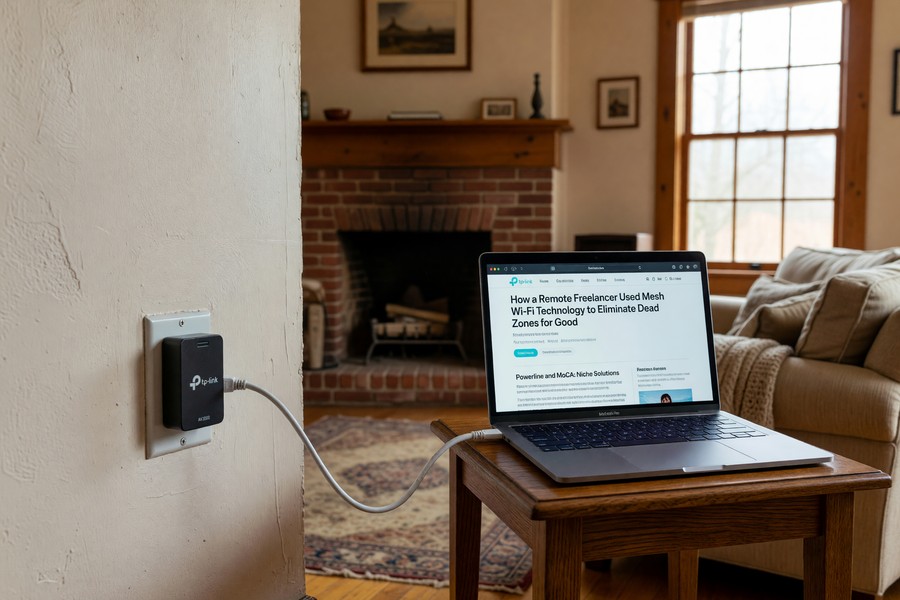
Powerline and MoCA: Niche Solutions
Powerline adapters transmit network data through your home’s electrical wiring. They’re useful in specific scenarios, old homes with thick plaster walls that block Wi-Fi signal severely. But powerline performance is highly dependent on the quality and age of your electrical wiring. Modern homes with updated wiring can achieve 200–500 Mbps. Older homes with aluminum or knob-and-tube wiring may see only 20–50 Mbps.
MoCA adapters use existing coaxial cable, the same lines that carry cable TV, to transmit Ethernet-quality data at up to 2.5 Gbps. If your home is pre-wired for cable, MoCA is an excellent option for wired backhaul between mesh nodes. Several mesh systems, including Netgear Orbi, support MoCA natively. For most freelancers, though, it’s an added complexity layer that mesh systems eliminate entirely.
| Technology | Avg Cost | Throughput at Range | Roaming | Setup Complexity |
|---|---|---|---|---|
| Mesh Wi-Fi (6E) | $249–$549 | 400–600 Mbps | Seamless | Low |
| Range Extender | $29–$79 | 50–150 Mbps | Manual | Very Low |
| Powerline Adapter | $40–$120 | 20–500 Mbps | N/A (wired) | Medium |
| MoCA Adapter | $80–$150 | 1–2.5 Gbps | N/A (wired) | High |
| Single Router (upgraded) | $150–$400 | 100–300 Mbps at 50 ft | N/A (single point) | Low |
Wi-Fi range extenders hold the largest share of the home networking retail market by units sold, yet they receive the lowest customer satisfaction ratings of any networking category, according to J.D. Power’s 2023 Home Network Satisfaction Study.
The verdict is clear for freelancers prioritizing reliability: mesh is the only category that combines seamless roaming, full throughput at range, and simple management in a single system. The alternatives solve partial problems. Mesh solves the whole problem.
For freelancers who also use AI-powered productivity tools alongside their network upgrade, the guide to AI tools saving small businesses time in 2026 pairs naturally with this connectivity investment, fast, reliable Wi-Fi is the foundation every AI tool depends on.
Mesh networking has fundamentally changed home connectivity, making enterprise-grade roaming and coverage accessible at consumer prices. The performance gap between mesh and single-router setups is substantial, as SmallNetBuilder’s extensive testing has documented.
Avoid “mesh” systems from unverified brands on Amazon that use the term loosely. True mesh requires a dedicated backhaul channel. Budget systems under $80 for a 3-node kit almost always use range extender architecture disguised as mesh, delivering all the downsides of extenders with a higher price tag.
The global mesh Wi-Fi market was valued at $9.14 billion in 2023 and is projected to reach $28.9 billion by 2030, a 17.8% compound annual growth rate, driven largely by remote work adoption, according to Statista.
Real-World Example: How Marcus Rebuilt His Freelance Business with Mesh Wi-Fi
Marcus Delgado is a freelance UX consultant based in Austin, Texas, working from a 2,800 sq ft two-story home. His home office sits in a back bedroom on the second floor, roughly 65 feet and two floors from his ISP-provided gateway router, which sat in the living room on the ground floor. In early 2023, Marcus was billing 35 hours per week at $85/hour, but logging an average of 3.4 hours weekly in what he called “connectivity tax”, dropped Zoom calls, failed file uploads, and browser timeouts. At his billing rate, that represented $11,900 in annual lost productivity. Beyond the money, two client relationships had become strained over missed deadlines caused by failed file deliveries.
In March 2023, Marcus invested $349 in a Google Nest WiFi Pro 3-node kit. He placed the gateway node in the living room, a second node at the top of the staircase on the second floor, and a third node in the hallway outside his home office. Setup took 14 minutes using the Google Home app. He also ran a short Ethernet cable from his work desk to the nearest node, enabling a wired connection for his laptop during critical calls and file transfers.
The results were immediate. In the 30 days following the upgrade, Marcus logged zero dropped Zoom calls, down from an average of 4.3 per week. His file upload speed in the home office went from an average of 8.2 Mbps to a consistent 187 Mbps. He recovered 3.1 billable hours per week, adding $1,054/month in effective income. His total investment paid back in 10 days. By June, Marcus had onboarded two new retainer clients who had previously cited “technical issues” during his proposal calls as a hesitation factor.
Marcus also set up a separate guest network for his household’s streaming and gaming devices, eliminating the bandwidth competition that had been silently throttling his upload speeds during evenings. He noted that the QoS “Work Mode” setting in the Google Home app made a particularly noticeable difference on weekday afternoons, the hours when his teenage kids’ gaming traffic had previously competed with his client calls. Total setup time for all configurations: under 25 minutes. Total annual ROI on a $349 investment: approximately $12,600 in recovered and newly acquired income.
Your Action Plan
-
Audit Your Current Dead Zones
Walk your home with your phone’s Wi-Fi analyzer app (Network Analyzer for iOS, WiFi Analyzer for Android) and note signal strength in every room. Mark rooms where signal drops below -70 dBm, these are your dead zones. This 10-minute audit tells you exactly how many nodes you need and where to place them.
-
Measure Your Internet Plan’s Speeds
Run a speed test (Speedtest.net) while plugged directly into your modem via Ethernet, then again on your current Wi-Fi in your home office. The difference between these two numbers quantifies how much performance your current setup is wasting. Most freelancers are shocked to find they’re receiving only 20–35% of their paid plan speed at their desk.
-
Choose the Right System for Your Home Size
Use this rule: homes under 2,500 sq ft need 2 nodes; 2,500–5,000 sq ft need 3 nodes; over 5,000 sq ft need 4+ nodes. For most freelancers in standard homes, a 3-node Wi-Fi 6E system (Google Nest WiFi Pro or TP-Link Deco XE75) hits the performance-to-price sweet spot at $249–$299.
-
Purchase and Confirm Tax Deductibility
Buy directly from Amazon, Best Buy, or the manufacturer’s website and save the receipt for your tax records. Confirm with your accountant that the purchase qualifies as a home office equipment deduction under Section 179. At a 22% tax rate, a $300 system effectively costs $234 after deduction.
-
Set Up Gateway Node First, Then Satellites
Connect the gateway node to your modem via Ethernet and configure it through the manufacturer’s app. Only after the gateway is fully online should you power on satellite nodes. Place satellites at the midpoint between the gateway and each dead zone, not inside the dead zone. The app’s signal strength indicator will confirm optimal placement.
-
Enable QoS and Work Device Priority
In your mesh app, locate the QoS or “device priority” settings. Set your primary work laptop or desktop as the highest-priority device. If your app supports scheduling, set work hours as a high-priority window. This single setting can recover 10–20% of throughput during household peak usage periods.
-
Create a Separate Work Network
Enable a dedicated SSID for your work devices, separate from the household network. Connect only your laptop, work tablet, and any other client-facing devices to this network. Keep smart home devices, personal phones, and streaming hardware on the household SSID. This reduces congestion and adds a basic layer of network security.
-
Run Post-Setup Benchmarks and Document Results
After setup, re-run your speed tests in every room that previously showed dead zones. Document the before/after numbers. This serves two purposes: it confirms the upgrade performed as expected, and it provides data you can include in your tax records to justify the business deduction. If you track business tools systematically, adding this to your online money management toolkit rounds out a professional infrastructure setup.
Frequently Asked Questions
Is mesh Wi-Fi for freelancers actually worth the cost if I have a small apartment?
For apartments under 1,200 square feet, a single high-quality Wi-Fi 6 router (like the ASUS AX3000) will typically provide adequate coverage at a lower cost ($80–$150). Mesh becomes worth the investment when your home office is more than 30 feet from your router, involves multiple floors, or has walls made of brick, concrete, or dense plaster. If your apartment has dead zones despite its small size, a 2-node mesh starter kit at $150–$199 is still the cleanest solution.
Can I use my ISP’s provided router alongside a mesh system?
Yes, but it requires putting the ISP router into “bridge mode” or “passthrough mode” to disable its routing functions and let the mesh system handle all routing. This avoids the “double NAT” problem, which causes latency spikes and compatibility issues with VPNs and some video conferencing tools. Your ISP’s support team can walk you through enabling bridge mode, it takes about 5 minutes over the phone.
How does mesh Wi-Fi handle multiple simultaneous video calls in a shared household?
This is one of mesh Wi-Fi’s strongest use cases. Mesh systems distribute client devices across multiple nodes, reducing congestion per access point. A 3-node Wi-Fi 6E system can handle 8–12 simultaneous HD video streams without meaningful degradation. For comparison, a single router managing the same load shows 40–60% latency increases and frequent packet loss, according to Wirecutter’s multi-stream stress tests.
Do I need to replace my mesh system when Wi-Fi 7 arrives?
Wi-Fi 7 devices have begun shipping in 2024, but adoption will be gradual. Wi-Fi 7’s primary advantage, multi-link operation (MLO), requires both the router and the client device to support the standard. Most Wi-Fi 6E systems purchased today will remain competitive for 3–5 years. Unless you’re processing 8K video or running a high-density professional environment, Wi-Fi 6E is more than sufficient for current freelance workloads.
Does mesh Wi-Fi affect my internet plan’s speeds?
A mesh system does not increase your maximum internet speed, that’s determined by your ISP plan. What it does is deliver your existing plan’s full speed consistently throughout your home. If you’re paying for 500 Mbps but only receiving 80 Mbps at your desk, the mesh system doesn’t increase your plan, it recovers the 420 Mbps you’re already paying for. For most freelancers, this is more than adequate; upgrading your ISP plan before fixing your Wi-Fi distribution is one of the most common and expensive connectivity mistakes.
Is a wired Ethernet connection to my desk better than mesh Wi-Fi?
Yes, a wired Ethernet connection directly to your laptop or desktop will always outperform any wireless connection for latency and consistency. However, it requires running cable through walls or across floors, which isn’t feasible for most renters or anyone who moves their workspace. The best setup combines mesh Wi-Fi for whole-home coverage with a short Ethernet cable from the nearest mesh node to your primary work device. This hybrid approach gives you wired-quality performance at your desk and wireless flexibility everywhere else.
How long does it take to set up a mesh Wi-Fi system?
Most major mesh systems, Eero, Google Nest, TP-Link Deco, can