
Quick Answer
AI lead scoring in HubSpot requires Marketing Hub Enterprise, at least 50 contacts, and a minimum of 25 converted and 25 non-converted examples. No developer is needed: HubSpot’s model reads lifecycle history automatically, and no-code tools like Zapier can pipe outside data in if you’re on a lower tier.
Updated October 2025
Key Takeaways
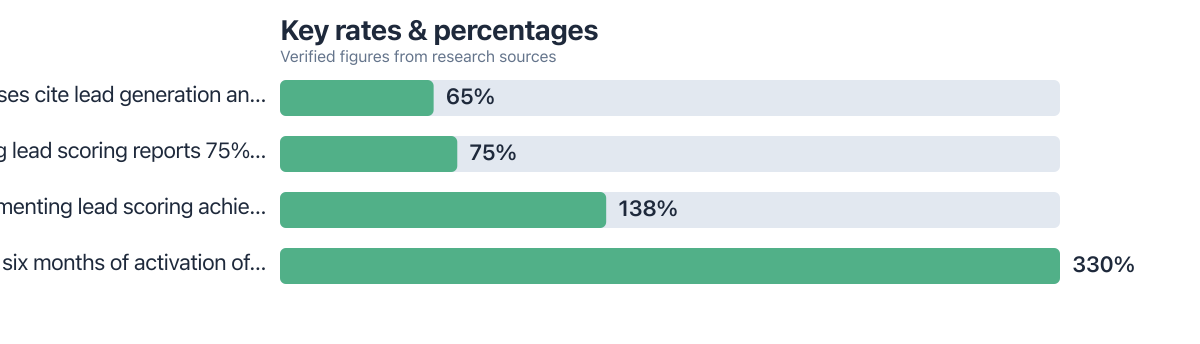
- HubSpot’s AI lead scoring delivers 75% higher conversion rates than traditional point-based systems, according to research cited by Landbase.
- The model evaluates data in about one hour after activation, then generates separate engagement and fit scores based on lifecycle transitions and behavioral signals.
- Teams using AI scoring report 300–400% ROI within the first year, compared to 138% for manual systems, per Landbase data.
- AI scoring requires at least 25 converted leads and 25 non-converted examples to activate, fewer than that, and HubSpot defaults to manual scoring.
- Without consistent lifecycle data, AI models produce skewed scores; duplicate records and inconsistent property formatting degrade performance even when thresholds are met.
- Manual negative scoring rules for actions like unsubscribes or inactivity are essential to prevent false inflation of lead scores.
Setting up AI lead scoring in HubSpot takes about an hour of setup and one more hour of waiting while the model evaluates your data. That’s it. No API keys, no Python, no data scientist on retainer. HubSpot’s native scoring engine builds its model from your existing contact records, and companies that put AI to work in sales report leads and appointments rising by more than 50%, according to McKinsey.
That gap between “AI scoring exists” and “AI scoring works for your pipeline” is where most guides stop short. This one covers the setup, the data prep nobody mentions, the manual overrides you’ll actually need, and what to do if you’re not paying for Enterprise.
What Does HubSpot’s Native AI Lead Scoring Actually Require and Deliver?
HubSpot’s AI lead scoring needs Marketing Hub Enterprise, a minimum of 50 contacts, and at least 25 examples each of converted and non-converted leads before it will generate a model. Below that threshold, the tool simply won’t activate.
Once the data clears that bar, the model looks at lifecycle stage transitions, how contacts moved from subscriber to lead to customer, and separates that from raw engagement signals like email opens or page views. It builds two distinct scores: an engagement score (how active someone is) and a fit score (how well they match your best customers). Evaluation takes roughly an hour after you launch it, and both scores land as standard HubSpot properties you can use in workflows, lists, and reports, no different from a manual property you’d build yourself.
The upside over manual scoring is real. Machine learning-based scoring shows 75% higher conversion rates compared to traditional point-based systems, per research cited by Landbase. That’s a meaningful difference for teams still assigning points by hand in a spreadsheet-style property.
Key Takeaway: HubSpot’s AI scoring needs Enterprise-tier access, 50 contacts, and 25 conversions minimum, then evaluates in about an hour and produces separate engagement and fit scores, per HubSpot’s documented requirements.
How Do You Prepare HubSpot Data for AI Scoring Without Writing Code?
Clean lifecycle stage data matters more than any other single factor in getting an accurate model. If contacts skip stages, get manually reassigned incorrectly, or sit in “Lead” for two years without ever converting or churning, the AI reads that noise as a signal, and the resulting score will be wrong in ways that are hard to spot later.
Start by auditing property consistency. Pick one or two fields the model should weigh, like job title or company size, and make sure historical entries use the same formatting. “VP Sales” and “vp of sales” read as different values to a model, even though they mean the same thing to a human. Deduplicate contacts before training; duplicate records with different lifecycle stages confuse the balance HubSpot needs between converted and non-converted examples.
This is the same discipline that makes any CRM setup work well, whether you’re running a micro-agency’s sales pipeline on free tools or a full Enterprise stack. Bad inputs produce bad outputs regardless of how much AI sits on top.
Key Takeaway: Consistent lifecycle stages and deduplicated property values matter more than data volume; sloppy inputs skew the AI model even when you clear the 50-contact minimum HubSpot requires for training.
Creating Your First AI Engagement and Fit Score, Step by Step
Go to Reports, then Lead Scoring, then create a new score and choose “AI-powered” as the type. HubSpot will ask you to define the lifecycle transition that counts as a conversion, typically Lead to Customer, or Lead to Sales Qualified Lead, depending on how your funnel is structured.
Set the timeframe next. This tells the model how far back to look for training examples; six to twelve months usually gives enough volume without pulling in stale market conditions from years ago. HubSpot then generates suggested scoring criteria automatically, showing which properties and behaviors correlated most with past conversions. Review these before enabling: sometimes the model surfaces a signal that’s technically correlated but not actually causal, like “signed up in March” correlating with a seasonal campaign rather than genuine intent.
Key Takeaway: The AI scoring wizard takes under 20 minutes to configure, but the review step matters: check suggested criteria for coincidental correlations before enabling the score, since HubSpot’s own case data shows properly tuned scoring drove a 330% jump in qualified leads within six months.
Can You Fine-Tune AI Scores Manually, and What If You’re Not on Enterprise?
Yes: HubSpot’s score editor lets you adjust every AI-suggested criterion and weight after the model builds it, so you keep full control without touching code. This matters because AI recommendations aren’t always right for edge cases in your specific business, and the explainability panel shows exactly which signals drove a contact’s score, so you can spot and correct anything that looks off.
Add negative scoring rules manually for actions that suggest disinterest: unsubscribing from email, bouncing, or going cold for 90-plus days. HubSpot’s AI model doesn’t always weight these penalties aggressively enough on its own, and without them, scores inflate from repeated low-intent actions like opening the same newsletter every week. A contact who opens ten emails but never clicks isn’t more qualified than one who opens two and books a demo; decay logic and negative points keep that distinction visible in the score.
If you’re on Professional or Starter, the native AI model simply isn’t available; HubSpot restricts it to Enterprise. The workaround: build a scoring property manually using HubSpot’s standard workflow tools, then enrich it with external model outputs. Teams pull product usage or billing data from other systems and push it into a custom HubSpot property using Zapier, Make, or n8n, no custom API integration required. That property then feeds into a manual scoring workflow the same way native AI feeds an Enterprise account. It’s not identical to the built-in model, but it closes most of the gap for teams not ready to upgrade.
Key Takeaway: Manual overrides and negative scoring rules stop AI-driven scores from inflating on low-intent behavior; teams below Enterprise can replicate roughly the same outcome using no-code tools to import external data into custom properties.
| Approach | Setup Effort | Reported ROI |
|---|---|---|
| No scoring system | None | 78% ROI on lead generation, per Landbase’s cited data |
| Manual point-based scoring | Moderate (rules built by hand) | 138% ROI once lead scoring is implemented |
| AI/machine learning scoring | Low (model builds criteria) | 300-400% ROI within the first year, per Landbase |
Run the arithmetic on a modest pipeline and the gap gets concrete. Say a team closes 100 deals a year worth $2,000 each from scored leads, generating $200,000 in revenue against a scoring program that costs roughly $14,000 a year in tooling and time (a rough stand-in for the “cost” side of an ROI ratio). At 138% ROI according to Landbase (citing LLCBuddy), that $14,000 investment returns about $19,320 net. At 300%, the low end of the machine learning range, the same spend returns $42,000 net, more than double. The dollar cost assumptions here are illustrative, but the ratio between manual and AI-driven ROI is what HubSpot and Landbase’s data both point toward.
How Do You Test and Monitor Scores, Especially With a Small Dataset?
Compare AI-predicted scores against actual close rates monthly for the first quarter after launch, since that’s the fastest way to catch a model that’s drifting or was trained on skewed data. Build a simple report pairing lead score bands (say, 0–25, 26–50, 51–75, 76–100) against actual conversion rate per band. If your top band isn’t converting meaningfully higher than your bottom band, the model needs retraining or your data prep needs another pass.
Small datasets are the most common failure point. If you have fewer than 25 converted contacts, HubSpot’s AI scoring won’t activate at all, and even right at that threshold, the model has thin evidence to learn from. The workaround here is hybrid: run manual scoring criteria alongside a smaller AI test group, or widen your training window to 18–24 months to pull in more historical conversions before trying again. Some teams also use HubSpot lists to manually flag “quasi-conversions”, like demo requests or pricing page visits, as a bridge dataset until real closed-won volume builds up. Route scored leads into action using workflows: set a threshold (say, any contact crossing 70 on the combined score) that triggers a task assignment or a Slack notification to sales, and pair it with reset logic that drops the score back down if a deal goes to closed-lost or a contact goes dark for 60 days. Without that reset, old high scorers keep cluttering prioritized lists long after they’ve gone cold.
For real-time prioritization on top of scoring, HubSpot’s Prospecting Agent (part of Breeze AI) reads scored leads and surfaces who to contact first, which pairs well with a tuned threshold system. Teams handling outbound at volume increasingly combine this with AI voice agents for initial outreach once a lead crosses into priority tiers, though that’s a heavier lift than most teams need on day one.
Key Takeaway: Datasets under 25 conversions won’t trigger HubSpot’s AI model at all; widening the training window or blending manual and AI scoring bridges the gap while U.S. small businesses report 65% cite lead qualification as their top sales challenge.
The honest caveat: AI lead scoring is not a substitute for a defined sales process. If your team doesn’t already agree on what “qualified” means, the model will just automate inconsistency at scale. It also won’t fix a fundamentally broken lifecycle stage setup; garbage lifecycle data trains a garbage model, no matter how sophisticated HubSpot’s algorithm is underneath. Teams still managing lead flow through spreadsheets or scattered tools might get more value first from tightening up contract and proposal workflows or a cleaner CRM foundation before layering AI scoring on top.
For smaller operations still choosing their core stack, it’s worth comparing productivity suites built for teams under 10 before assuming HubSpot Enterprise is the right first move; the AI scoring feature alone shouldn’t drive a tier upgrade if the rest of the platform doesn’t fit.
How Does HubSpot’s AI Lead Scoring Work Without a Developer?
No developer is required. The entire setup happens through HubSpot’s Reports interface using dropdown menus and guided steps. The only technical work involves optional no-code tools like Zapier if you’re pulling in external data from other systems.
What’s the Minimum Number of Contacts Needed for AI Scoring?
You need a minimum of 50 contacts total, with at least 25 examples each of converted and non-converted leads. Below that threshold, the AI option won’t activate and HubSpot will prompt you to use manual scoring instead.
Can I Use AI Scoring Without Marketing Hub Enterprise?
Native AI scoring is restricted to Marketing Hub Enterprise. Teams on lower tiers can approximate similar results by building manual scoring properties and feeding external data in through no-code automation tools like Zapier or Make.
How Long Does HubSpot’s AI Take to Generate a Score?
Evaluation typically takes about one hour after you launch the scoring tool. HubSpot analyzes historical lifecycle transitions and engagement data during that window before generating suggested criteria.
What’s the Difference Between Engagement and Fit Scores?
Engagement score measures how active a contact is, based on things like email opens, clicks, and website visits. Fit score measures how closely a contact resembles your best past customers, based on firmographic and behavioral traits, independent of how active they currently are.
How Do I Prevent AI Scores from Inflating on Low-Intent Actions?
Add manual negative scoring rules and decay logic in the score editor for actions like unsubscribes, bounces, or extended inactivity. HubSpot’s AI recommendations don’t always penalize these aggressively enough on their own, so manual adjustment keeps scores accurate over time.
Sources
- HubSpot, Graphisoft Lead Scoring Case Study
- Landbase, Lead Scoring Statistics and ROI Research
- Monday.com, AI Lead Scoring Statistics and Requirements
- U.S. Small Business Administration, Small Business Resources
- Forbes, Why AI Lead Scoring Is the Future of Sales
- Salesforce Blog, The Benefits of AI Lead Scoring
- Gartner, AI in Sales: Trends and Predictions for 2024
- CIO, AI Lead Scoring in Salesforce, HubSpot, and Other CRM Platforms
- MarketingProfs, AI Lead Scoring: What It Is and Why It Matters
- Inbound.org, AI Lead Scoring Best Practices
- Campaign Monitor, Guide to AI Lead Scoring
- Optimizely, The Ultimate Guide to AI Lead Scoring
- McKinsey & Company, AI in Sales and Marketing
- NetSuite, AI Lead Scoring: A Practical Guide
- Clarify, What Is AI Lead Scoring and How Does It Work?